Referees and Judges
The referees area has four tabs:
- Build and maintain the referee/judge roster
- Assign officials to rings per timeslot
- Plan match-by-match assignments per ring
- Review quality and workload stats
Workflow
- Add officials in List and set class-type roles.
- Assign officials to each ring in Plan -> Assignment for every timeslot.
- Open each ring in Plan -> Ring and run scheduling.
- Manually adjust edge cases (conflicts, absences, last-minute changes).
- Review distribution and quality in Stats.
List Tab
Use this tab to build your event referee roster.
- Add referees/judges with name, organization, and country.
- Set role permissions per class type (
Referee,Judge, or both). - Edit inline (double-click values).
- Remove officials from the event (soft remove).
- Set per-referee COI against organizations or specific boxers.
- Paste bulk lists or CSV. Role hints like
R,J,R/Jare supported.
Example CSV you can paste into the first name field:
Anna,Svensson,SWE,R/J
Marco,Rossi,ITA,J
Elin,Andersson,GBR,R
Plan Tab
The plan tab has two modes.
Assignment Mode (timeslot level)
- Distribute officials between
Unassignedand each ring. - Move with arrows or context menu.
ResetandRandomare available.- Save assignments per timeslot.
Ring Mode (match level)
Plan exact placements for each match:
- Fill empty slots or regenerate schedule using:
Balanced wave(default)Unpredictable random
- Scope actions to selected matches (shift-select supported).
- Change between 3 and 5 judges where class rules allow.
- Clear all assignments in scope.
- Remove one person from all matches in scope.
- Export/import Excel plans.
- Generate/apply preliminary plans when needed.
Judges Timeline (manual fast editing)
The timeline view is useful when you want to make many manual changes quickly across multiple matches.
- Rows are judges/referees, columns are matches.
- Cell meaning:
R= referee in ring (placement0)1..N= judge placement- empty/gray = break (not assigned)
- Click a cell to select it, then use keyboard shortcuts:
Ror0sets referee placement1-5sets judge placement (within allowed judge count for that match)Backspaceremoves that person from the match- Arrow keys move between cells
Enter/Tabmoves to next matchCtrl/Cmd + Zundo,Ctrl/Cmd + Shift + Zredo
- Changes are local until you press Save in the timeline panel.
Conflict hints:
- Conflicts are color-coded with strict priority:
Red= COI conflict (highest priority)Orange= same organizationYellow= same country (lowest priority)
- If multiple conflicts apply, only the highest-priority color is shown (
COI -> org -> country). - Optional same-country avoidance is available.
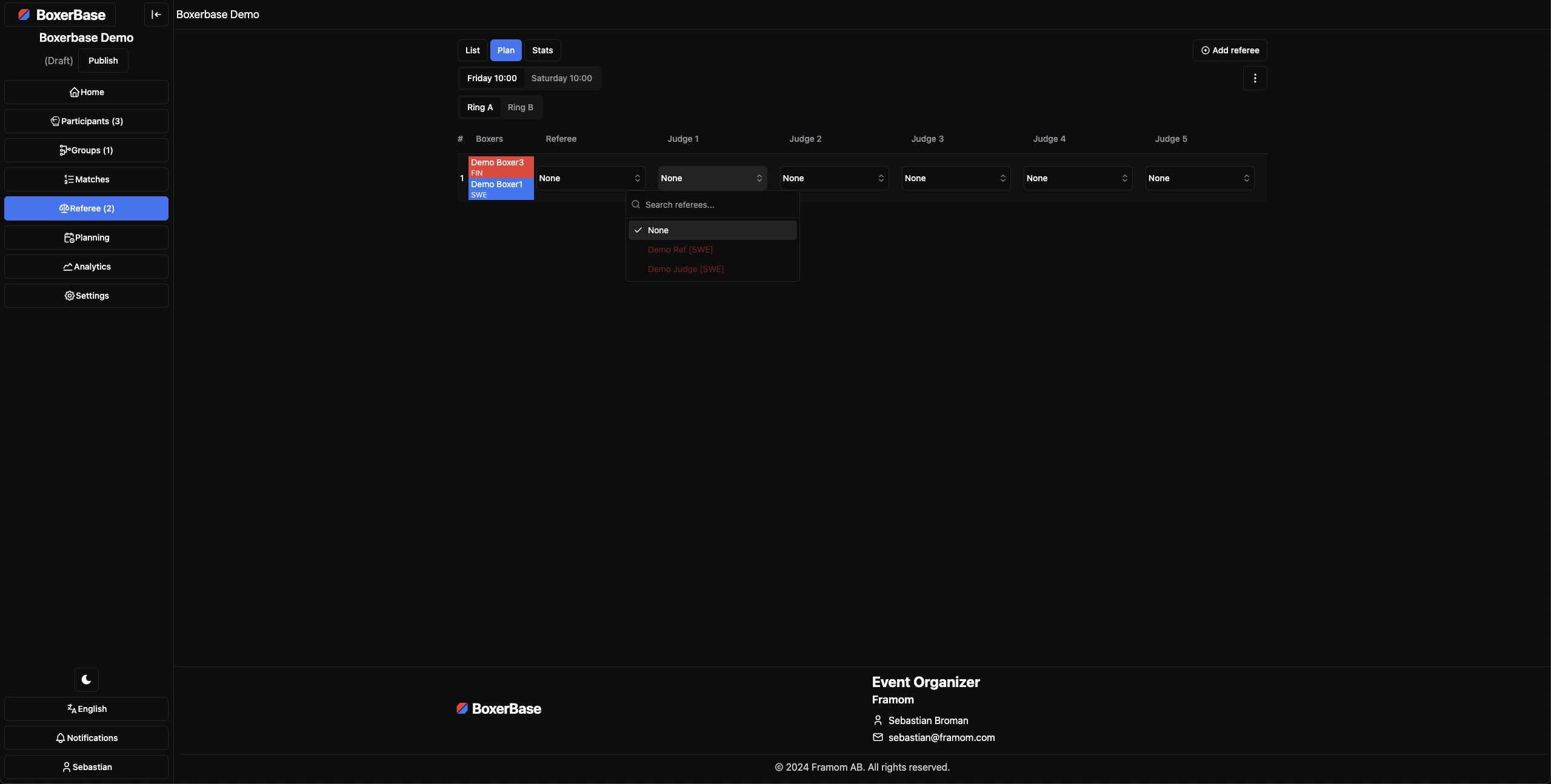
Conflict of interest Feature
Conflict of interest lets you mark specific matchups a referee should avoid.
- Add COI from List in the
COIcolumn for each referee. - You can add:
- Organization COI (avoid all boxers from that org)
- Boxer COI (avoid one specific boxer)
- Conflict of interest are used by planning and conflict highlighting, and are treated as the most severe conflict type.
Stats Tab
Use stats to review both quality and load balancing.
- Filter by all timeslots or one timeslot.
- Switch class type when the event has multiple variants.
- Search and sort by:
- Referee/judge workload
- Match and round errors
- Error rate
- TTJ (time-to-judge)
Practical Notes
- If a ring has no assigned officials, ring scheduling is blocked until assignment is done.
- Save as you go when moving between timeslots and rings.
- Set class-type role permissions correctly before auto scheduling.